
Connecting to your server
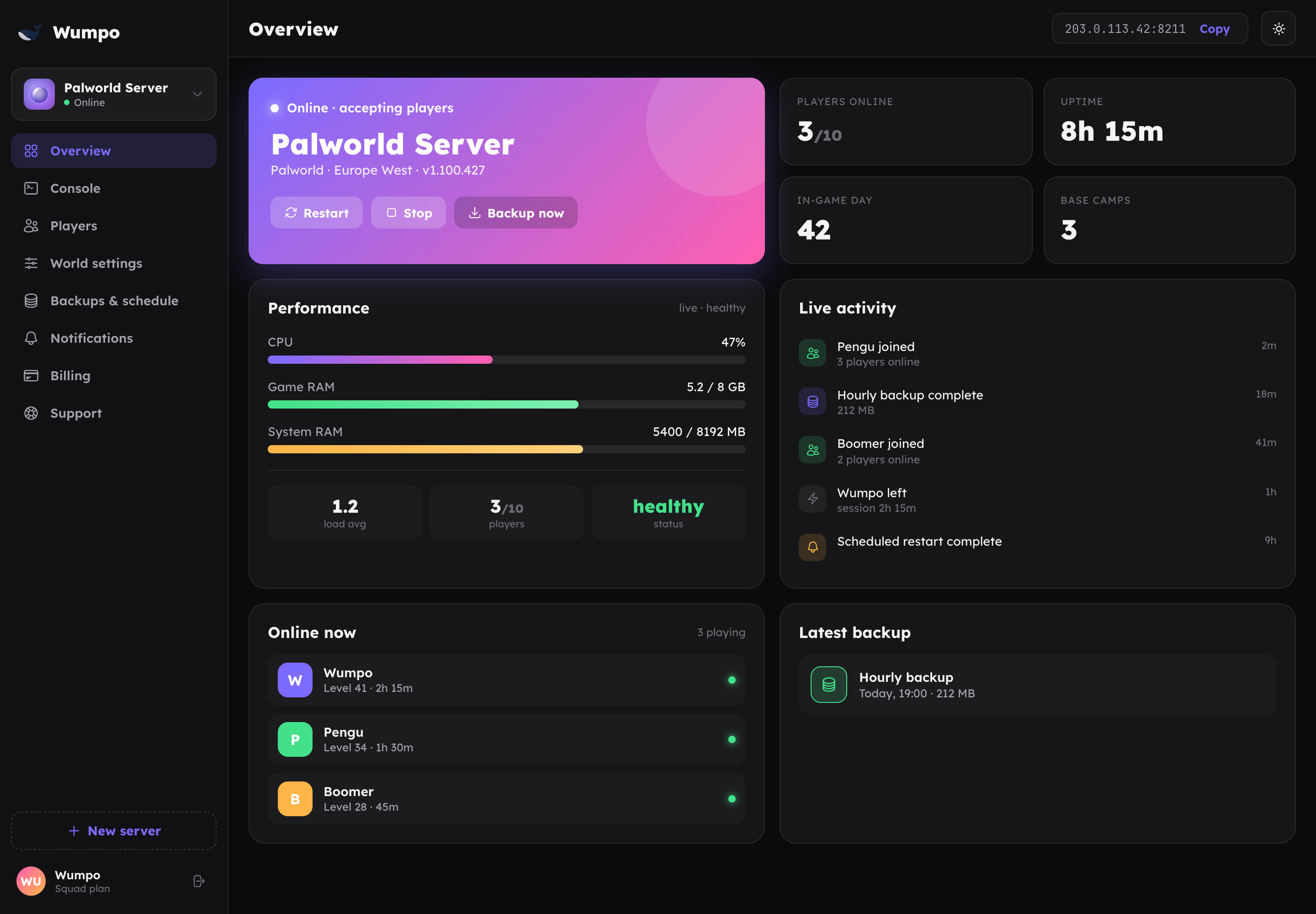
When your server is online, its connect address is shown on the Overview panel. Share that address with your squad so they can join. If you set a join password, share that too. Here is how each game connects.
Palworld
On Steam or Mac
- In Palworld, choose Join Multiplayer (Dedicated Server).
- Enter your server's connect address exactly as shown on the Overview panel.
- Connect, and enter the join password if you set one.
On Xbox, PlayStation 5 or Game Pass
These versions of Palworld have no box to type an address into, so they join by name instead. This works when cross-platform play is switched on for your server.
- From the main menu, choose Join Multiplayer Game.
- Choose Community Servers, not Official Servers.
- Search for your server's name, exactly as it appears in World settings.
- Join, and enter the join password.
If your server does not appear straight away, give it a few minutes after a restart and check the name matches. Share the name with console friends rather than the connect address, since they cannot use an address.
Terraria
- In Terraria, choose Multiplayer, then Join via IP.
- Enter your server's connect address exactly as shown on the Overview panel.
- Enter the join password if you set one, and connect.
Minecraft: Java
- In Minecraft: Java Edition, go to Multiplayer, then Add Server.
- Give it any name, and paste your server's connect address into the address field.
- Save, then join from the server list.
Minecraft: Crossplay (Bedrock players)
If you deployed the Crossplay edition, Bedrock players (mobile, console and Windows Bedrock) can join too:
- Go to Servers, then Add Server.
- Enter a name, then the server address and the port shown on the Overview panel.
- Save and join.
PC players on Java Edition join using the Java steps above.
7 Days to Die
- In 7 Days to Die, choose Join a Game, then Connect to IP at the bottom.
- Enter your server's connect address exactly as shown on the Overview panel.
- Enter the join password if you set one, and connect.
Project Zomboid
Project Zomboid wants the IP address and the port in separate fields, not as one address. Splitting them is the single most common reason a connection fails, so follow this closely:
- In Project Zomboid, choose Join, then the Favorites tab, then Add Server.
- Split your server's connect address at the colon: enter the part before the colon in the IP field, and the part after it in the Port field.
- Enter the join password if you set one, then Add.
- Select your server from the favourites list and choose Join Server.
Rust
- In Rust, press F1 to open the console.
- Type
client.connectfollowed by your server's connect address exactly as shown on the Overview panel, then press enter. - Rust has no join password, so there is nothing to enter there.
Tips
- Use the address exactly as shown, including the port where one is given.
- If nobody can connect, check the server is online on the Overview panel and give it a moment after any restart.
- Still stuck? See Troubleshooting.