
World settings
The World settings panel is where you shape how your world plays: difficulty, rates, player limits and more. The available options depend on the game you are hosting.
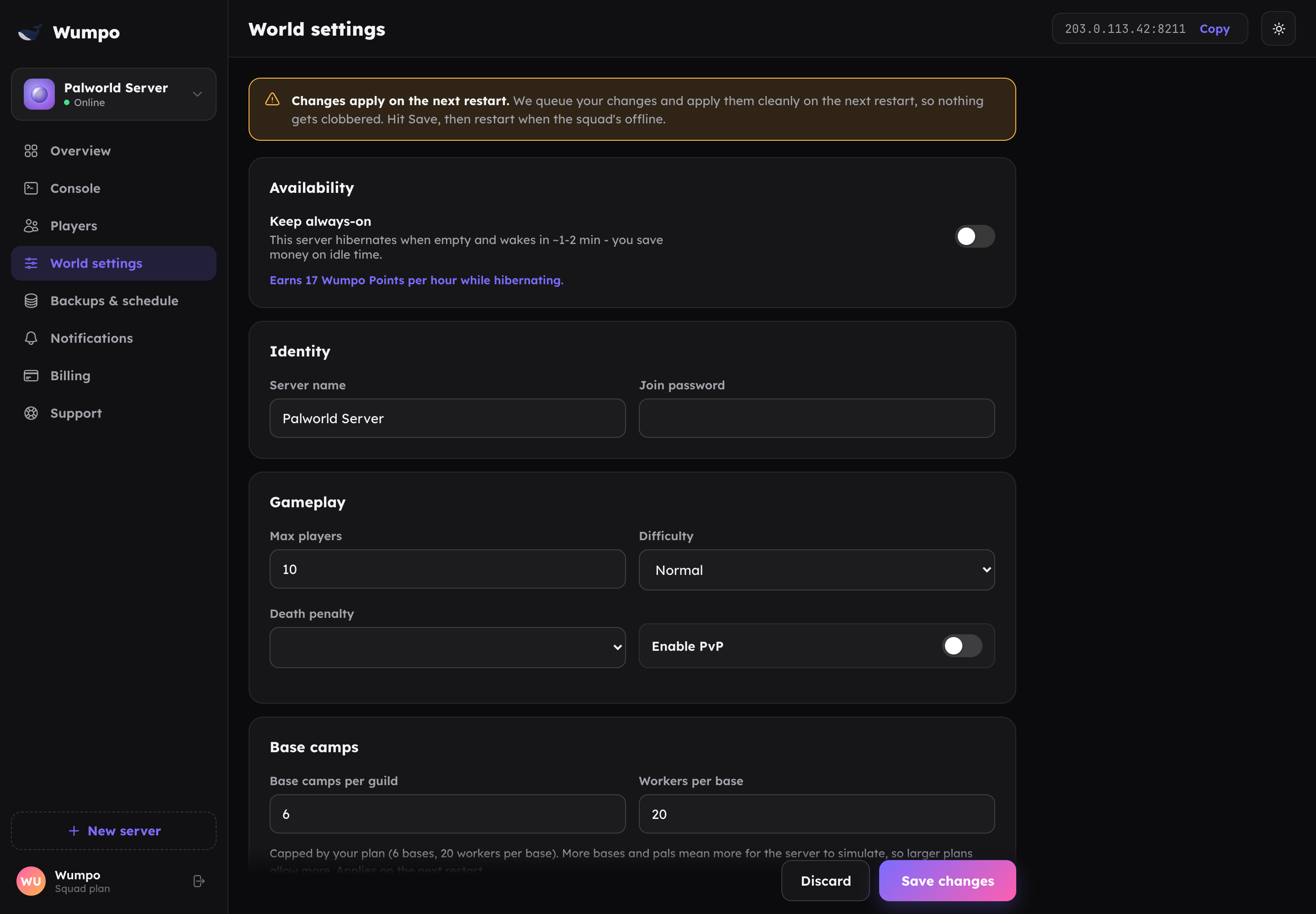
How changes apply
Most world settings take effect on the next restart, not instantly. When you save, the dashboard marks the changes and offers to restart so they take effect. You can restart straight away, or wait and let the next scheduled restart pick them up.
Your existing settings are kept unless you change them, so you can adjust one thing without disturbing the rest.
Palworld settings
For Palworld you can adjust difficulty (Casual, Normal or Hard), death penalty, XP and gather rates, breeding and more, plus player limits and base camp caps. See the Palworld guide for presets and the base camp limits per plan.
Minecraft settings
For Minecraft you can set difficulty (Peaceful, Easy, Normal or Hard), game mode (Survival, Creative, Adventure or Spectator), player limits, and the server name and join password. See the Minecraft guide.
Terraria settings
For Terraria you can change the server name and join password, the maximum number of players, and whether PvP is on. The world difficulty, size and seed are chosen when the world is generated and are fixed afterwards; the panel shows them but they cannot be edited. To change them, start a fresh world from the Danger zone. See the Terraria guide.
Presets
When you first deploy, you pick a preset (Chill, Normal or Hardcore) as a sensible starting point. Presets just set a batch of values for you; afterwards you can change anything individually here.
Server name and join password
You can rename your server and set or change its join password from World settings at any time. A join password keeps the server to just the people you share it with. See Players for more on keeping a server private.
Limits are set by your plan
Some values, like the maximum number of players, are capped by your plan. If you need a higher limit, moving to a larger plan raises the cap. See Plans and pricing.